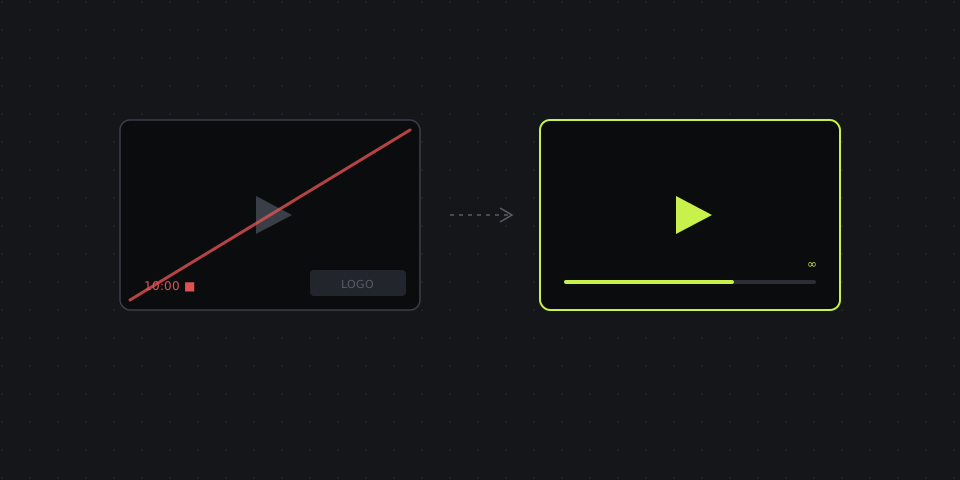
The three traps of "free" screen recorders
Before the list, it helps to know what to look for, because "free" can hide three very different limitations:
- Watermarks. The tool records fine, but the vendor's logo sits in the corner of every video. Fine for personal notes, embarrassing in front of a client.
- Time limits. Recording stops at 5, 10 or 15 minutes. You find out halfway through a walkthrough.
- Storage and sharing limits. The recording itself is unlimited, but the free plan keeps only your last N videos online, limits share links, or caps the resolution of exports.
Every tool below is free of the first two. Where there's a catch of the third kind, it's spelled out.
Free limits at a glance
| Recorder | Platforms | Watermark | Time limit | Webcam | Share link |
|---|---|---|---|---|---|
| OBS Studio | Windows, Mac, Linux | No | No | Yes | No (file) |
| ShareX | Windows | No | No | Limited | Via uploaders |
| Windows Snipping Tool | Windows 11 | No | No | No | No (file) |
| Xbox Game Bar | Windows 10/11 | No | Up to 4 h per clip (setting) | No | No (file) |
| macOS Cmd+Shift+5 / QuickTime | Mac | No | No | Workaround | No (file) |
| Screenity | Chrome | No | No | Yes | Local / Drive |
| Cap | Mac, Windows | No | No locally; 5-min share links | Yes | Yes, up to 5 min |
| ActivePresenter | Windows, Mac | No for recording | No | Yes | No (file) |
| Loom (free plan) | Mac, Windows, Chrome | No | 5 min, 25 videos | Yes | Yes |
| Bandicam (free) | Windows | Yes | 10 min | Yes | No |
| DashShot (free plan) | Mac, Windows, Chrome | No | 5 min, 25 videos | Yes | Yes, instant |
DashShot is our product, so to be clear about its row: the free plan records with no watermark but stops at 5 minutes per video and keeps up to 25 videos — the same limits as Loom's free plan. Pro ($8 per user per month, billed annually) removes both — more on that below. Bandicam is in the table as the example of what to avoid if you need a clean video for free. Limits are as of October 2026.
OBS Studio — the gold standard of free
OBS is open-source, has no paid tier at all, and records whatever you point it at — screens, windows, webcams, microphones and system audio — at up to 4K and high frame rates. There's no watermark, no time limit, no account. It also streams, which is why YouTubers and streamers use it.
The price you pay is setup. OBS thinks in "scenes" and "sources", and the first recording takes ten minutes of configuration. After that, it's the most capable free recorder there is. What it doesn't do: give you a link. The result is a file you upload somewhere yourself.
Best for: long recordings, tutorials, webinars, anything that ends up on YouTube or a course platform.
ShareX — free and endlessly configurable (Windows)
Better known as a screenshot tool, ShareX also records the screen to MP4 or GIF using FFmpeg, with no limits or watermark. Its real strength is automation: record, then automatically upload to your Google Drive, Dropbox or your own server and copy the link — all from one hotkey, once it's configured. Windows-only.
Best for: Windows power users who want screenshots and recordings in one free tool.
The built-in recorders you already have
Windows Snipping Tool (Windows 11) records a region or the whole screen with microphone and system audio, saves an MP4, and has no watermark or limit. It's the best zero-install option on Windows today. Xbox Game Bar (Win+Alt+R) records a single app window and is designed for games, but works for quick captures of one program.
On a Mac, Cmd+Shift+5 records the full screen or a selection with your microphone, and QuickTime Player does the same plus webcam-only recordings. No watermark, no limit — but no system audio without extra software, and no webcam overlay without a workaround.
Best for: occasional recordings when you don't want to install anything.
Screenity — free recording inside Chrome
Screenity is an open-source Chrome extension that records a tab, a window or the whole screen, with a webcam overlay, drawing tools, cursor highlights and a trimming editor. No account, no watermark, no time limit. Files are saved locally or to Google Drive; there's an optional paid version for cloud sharing.
Best for: anyone who works mostly in the browser and wants a Loom-style recorder for free.
Cap — open-source, with share links
Cap is an open-source Loom alternative for Mac and Windows. Local recordings are unlimited and unwatermarked. The free plan also gives you share links, but only for videos up to five minutes; longer shareable videos need Cap Pro (about $8 a month billed annually) or self-hosting.
Best for: short async video messages on a zero budget, and teams that want to host their own recordings.
ActivePresenter — free recording plus a real editor
ActivePresenter by Atomi Systems combines screen recording with a multi-track editor, and its free edition records with no watermark and no time limit, capturing system audio and microphone together. Some advanced editing features are reserved for paid editions. It's aimed at e-learning and training content, so it's heavier than a quick recorder.
Best for: trainers and course creators who need to edit recordings for free.
Loom's free plan — no watermark, but tight limits
Loom doesn't watermark free videos, but the Starter plan limits you to 25 videos per person and five minutes per recording. That's enough to try async video; it's not enough to rely on it for daily work.
Free options for Linux, Chromebooks and phones
Linux: OBS Studio is the most capable choice here too. For something lighter, SimpleScreenRecorder and Kazam record the screen with audio and no limits, and GNOME desktops have a built-in recorder in the screenshot tool (Ctrl+Shift+Alt+R on many distributions).
Chromebook: press Ctrl+Shift+Show windows, switch to the video icon, and choose full screen, a window or a region. Turn on the microphone in the settings gear. Recordings save to your Downloads folder with no watermark.
iPhone and Android: both have built-in screen recorders in the quick settings panel. On iPhone, long-press the record button in Control Center to turn on the microphone; on Android, the recorder asks whether to include device audio, the microphone or both before it starts. Neither adds a watermark.
Settings that keep free recordings sharp and small
Free tools rarely pick sensible defaults for work recordings. A few settings make a big difference:
- Resolution: record at 1080p even on a 4K or Retina screen. Text stays readable, and files are a fraction of the size. In OBS, set the output (scaled) resolution to 1920×1080.
- Frame rate: 30 fps is plenty for software demos and walkthroughs. 60 fps doubles the file size and only helps for games and fast animations.
- Format: MP4 with H.264 plays everywhere — in browsers, on phones, in Slack previews. In OBS, record to MKV (safer if the app crashes) and use File → Remux Recordings to convert to MP4 afterwards.
- Region instead of full screen: recording only the window or area you're talking about makes the video easier to follow and smaller to send.
- Audio levels: speak a test sentence and check the meter peaks around two-thirds, not at the top. Clipped audio can't be fixed afterwards.
When "free" costs more than $8 a month
Every free tool above produces a good recording. Where they differ from paid ones is what happens after you press stop. With OBS, the Snipping Tool, QuickTime or Screenity, you get a file. Then you upload it to Drive, set the sharing permission, copy the link, paste it into a chat, and explain in text what the video is about and what you need the other person to do. For one recording a month, that's fine. For five a day, it's a real cost in time.
This is the gap DashShot fills — and to be clear, it's our product. Its free plan already gives you a link the moment you stop, with no watermark, for videos up to 5 minutes and up to 25 videos in your library. On Pro, for $8 per user per month billed annually ($10 month to month), those limits go away and you get unlimited recordings: full screen, a window or a region, a camera bubble with live preview, pause and resume, cutting out mistakes anywhere in the video, and a link the moment you stop. You can also record a voice or video note and have it turned into a structured task with a status and subtasks, which removes the "and now let me write what I meant" step entirely — 10 such tasks a month on the free plan, 300 on Pro. Screenshots, the editor and full-page capture stay free.
A rough rule: if you record less than once a week, stay free — OBS or the built-in tools will serve you well. If you record several times a day and send those recordings to colleagues or clients, a tool that hands you a link right away saves real time — DashShot's free plan covers clips up to 5 minutes, and once your videos run longer, the time saved on uploading and explaining pays for a cheap plan quickly.
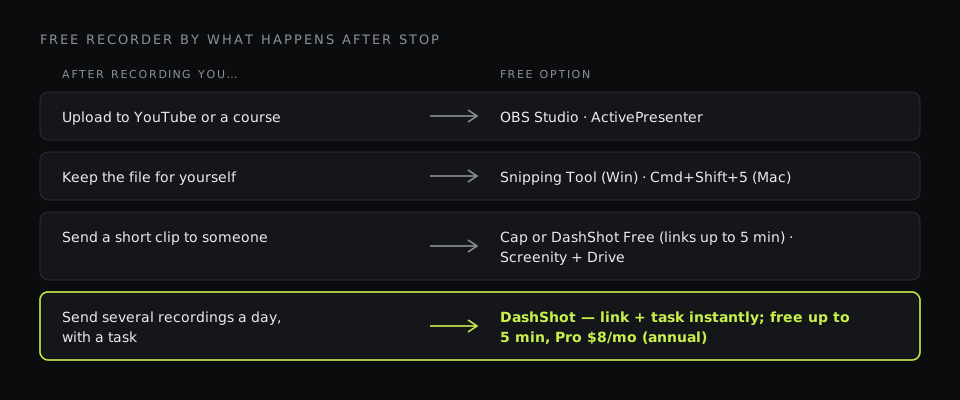
How to choose
- Long, high-quality recordings, zero budget: OBS Studio.
- Windows, nothing to install: Snipping Tool.
- Mac, nothing to install: Cmd+Shift+5.
- Browser-based, Loom-style, free: Screenity.
- Short videos with free share links: Cap or DashShot's free plan (up to 5 minutes).
- Free recording plus editing for courses: ActivePresenter.
- Daily recordings sent to people, with links and tasks: DashShot — free for clips up to 5 minutes, a cheap Pro plan for longer ones.
Whatever you choose, record a ten-second test before anything important. Most problems with free recorders — no sound, the wrong screen, a cropped window — show up in the first ten seconds, and it's much better to find them there than at minute twelve.