What to look for before you install
Most comparisons rank extensions by feature count. In practice, four things decide whether you'll still be using an extension in a month:
- Capture modes. Visible area, a selected region, the full scrolling page, and — for recording — a tab, a window or the whole screen, with or without a webcam.
- What happens after the capture. An editor for arrows and blur, a shareable link, a history you can search. An extension that just downloads a PNG saves you one click and costs you five later.
- Free plan limits. Number of videos, length per video, watermarks, how long files are kept.
- Permissions. What the extension can see and change in your browser — covered in detail below, because it's the one thing people skip.
The short list
| Extension | Screenshots | Full page | Screen recording | Share link | Free plan |
|---|---|---|---|---|---|
| DashShot | Yes + editor | Yes | Yes + webcam, GIF | Yes, no sign-up to view | Screenshots free; recording up to 5 min |
| Awesome Screenshot | Yes + editor | Yes | Yes + webcam | Yes | Limited videos and length |
| Nimbus Capture | Yes + editor | Yes | Yes + webcam | Yes | Basic; Pro for more |
| GoFullPage | Full page only | Yes | No | No | Free; editor is premium |
| Loom | Basic | No | Yes + webcam | Yes | 25 videos, 5 min each |
| Screencastify | No | No | Yes + webcam | Via Google Drive | Limited |
| Screenity | No | No | Yes + webcam | Local / Drive | Free, open-source |
| Vidyard | No | No | Yes + webcam | Yes, with view tracking | 5 videos per month |
Free plan details are as of October 2026 and change often — check the store listing before rolling an extension out to a team.
1. DashShot — screenshots, full page and recording with one link
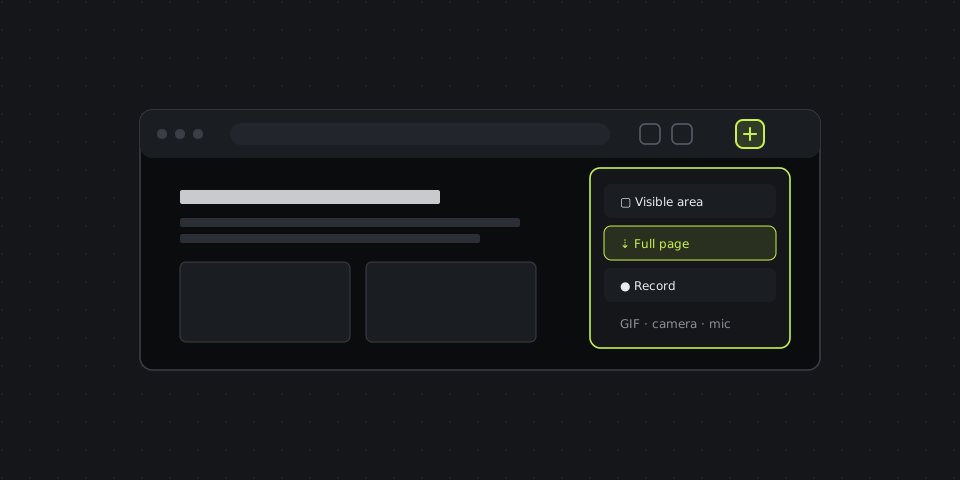
DashShot is our product, so take this section with that in mind. The extension combines all three capture types in one toolbar button: the visible area, a full scrolling page stitched automatically (including web apps that scroll inside a panel), and a recording of a tab, a window or the whole screen with an optional camera bubble. You can also record a GIF of up to 12 seconds.
After a screenshot, the editor opens in a new tab — arrows, rectangles, freehand, numbered callouts, text with background, pixelation and crop — and a short link goes to your clipboard. After a recording, you can trim the start and end or cut out parts in the middle, save to disk, require an email before viewing (on Pro), or generate step-by-step documentation from the video. The same account works in the desktop apps for Mac and Windows, so screenshots taken outside the browser end up in the same history.
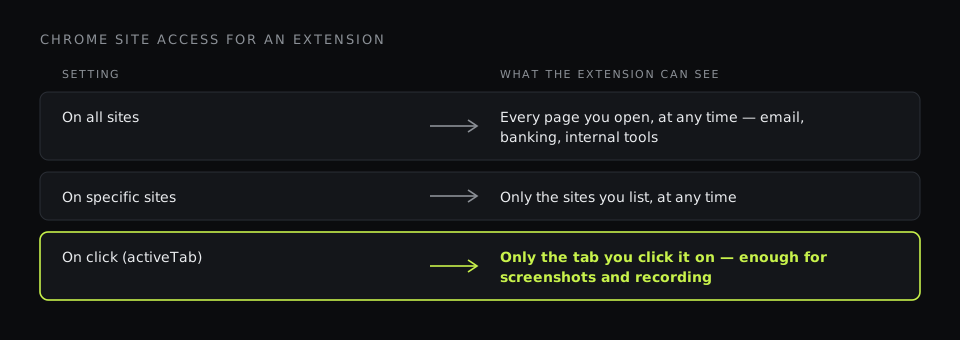
Permissions: the extension uses Chrome's activeTab permission — it gets access to a page only when you click its button on that tab — instead of asking to "read and change all your data on all websites".
Free plan: screenshots, full-page capture and the editor are free with no limits or watermark. Screen recording is free too, up to 5 minutes per video with no watermark; Pro removes the limit for $8 per user per month billed annually. Install from the Chrome Web Store.
2. Awesome Screenshot & Screen Recorder
One of the oldest and most installed capture extensions, with millions of users. It does visible, selected-area and full-page screenshots, a solid annotation editor with blur, and screen recording with a webcam and microphone. Captures can be uploaded to get a share link, and there's a team workspace on paid plans.
The free plan limits how many videos you can keep and how long they can be; paid plans unlock longer recordings and more storage. Like most extensions of its generation, it asks for broad access to the sites you visit so it can capture any page.
Best for: individuals who want one mature extension for both screenshots and occasional recordings.
3. Nimbus Screenshot & Screen Video Recorder
Nimbus Capture is a close competitor to Awesome Screenshot: full-page and region screenshots, an editor with blur and watermarks, screen and tab recording with a webcam, and a GIF option. It integrates with Nimbus Note, the company's note-taking app, which is handy if your team already documents things there. Advanced features — longer recordings, video editing, custom branding — sit behind Nimbus Pro.
Best for: people who capture a lot for documentation and like having many options in one place.
4. GoFullPage
GoFullPage does one thing: it takes a full-page screenshot of the current tab, reliably, in one click, and opens it in a new tab where you can download it as PNG or PDF. No account, no upload. A premium upgrade adds an editor and more export options.
Best for: anyone who regularly archives whole pages — designers, SEO and PPC specialists — and doesn't need recording or links.
5. Loom
Loom's extension is the quickest way into Loom: record a tab, window or screen with your camera bubble, and get a link as soon as you stop. Viewers can comment and react. The free Starter plan allows 25 videos per person, up to five minutes each; the Business plan costs $18 per user per month.
Best for: teams already on Loom. If you're choosing from scratch, compare it with the other recording options here on price per seat.
6. Screencastify
Screencastify grew up in classrooms: teachers record lessons and feedback, students record presentations. Recordings save to Google Drive, and there's a simple editor and interactive questions for educational use. The free plan has limits on what you can record and edit; paid plans are priced for education and business.
Best for: schools and teams that live in Google Workspace.
7. Screenity
Screenity is a free, open-source recorder extension with a surprisingly complete feature set: tab, window or screen recording, webcam overlay, drawing and annotation during recording, cursor highlighting, and an editor for trimming. No account and no watermark; files save locally or to Google Drive. A paid Pro version adds cloud sharing.
Best for: individuals who want free, unlimited recording in the browser.
8. Vidyard
Vidyard's extension is built for sales: record a personalized video, drop it into Gmail or LinkedIn, and get notified when the prospect watches. The free plan allows five recorded videos per month, up to 30 minutes each; paid plans add CRM integrations and team analytics.
Best for: sales reps who send videos to prospects and care about who watched.
Permissions: what an extension can actually see
When you click "Add to Chrome", the browser shows a list of permissions. For capture extensions, the important line is about site access:
- "Read and change all your data on all websites" means the extension can see the content of every page you open — including email, banking and internal tools — at any time, not only when you click it. Many capture extensions ask for this because it makes some features easier to build.
- activeTab (shown as no site access, or access "when you click the extension") means the extension can see a page only after you click its button on that tab. For screenshots and recordings, that's all that's really needed.
- Screen recording always goes through Chrome's own "Choose what to share" dialog — an extension can't silently start recording your screen.
You can check and limit an installed extension's access at any time: open chrome://extensions, click Details on the extension, and under Site access choose On click. For capture tools that's a sensible default — they'll keep working, and they won't have access to pages you didn't ask them to capture.
Two more checks worth a minute: the number of users and the date of the last update on the Web Store listing (abandoned extensions are the ones that get sold and turned into adware), and where your captures are stored — on your machine, in your Google Drive, or on the vendor's servers.
How to choose
- You need screenshots, full-page captures and short recordings, with links your team or clients can open: DashShot.
- You want one mature all-in-one extension for personal use: Awesome Screenshot or Nimbus.
- You only archive full pages: GoFullPage.
- You want free, unlimited recording: Screenity.
- Your team is on Loom, or in education, or in sales: Loom, Screencastify or Vidyard respectively.
One more practical tip: don't install three of these at once. Capture extensions fight over the same keyboard shortcuts and toolbar space, and every extra one is another set of permissions. Pick one, set its site access to "On click", and learn its shortcuts — that's what actually makes capturing fast.