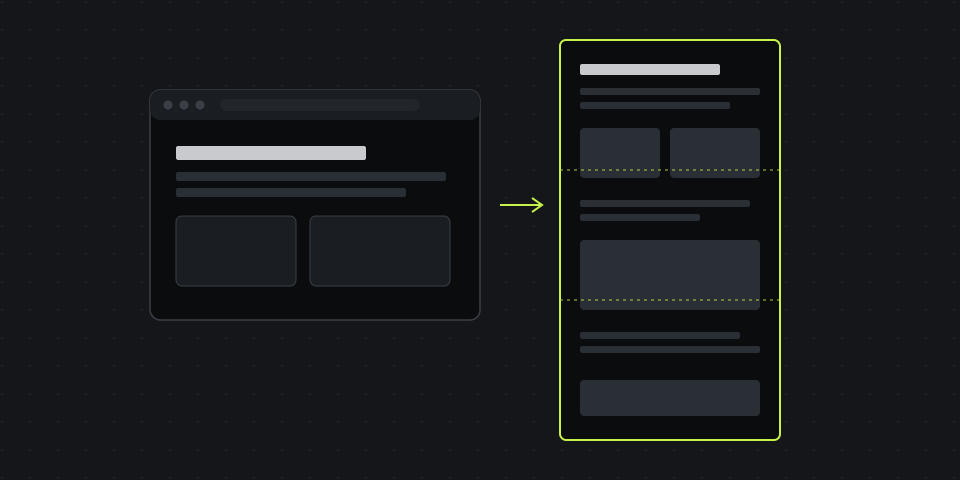
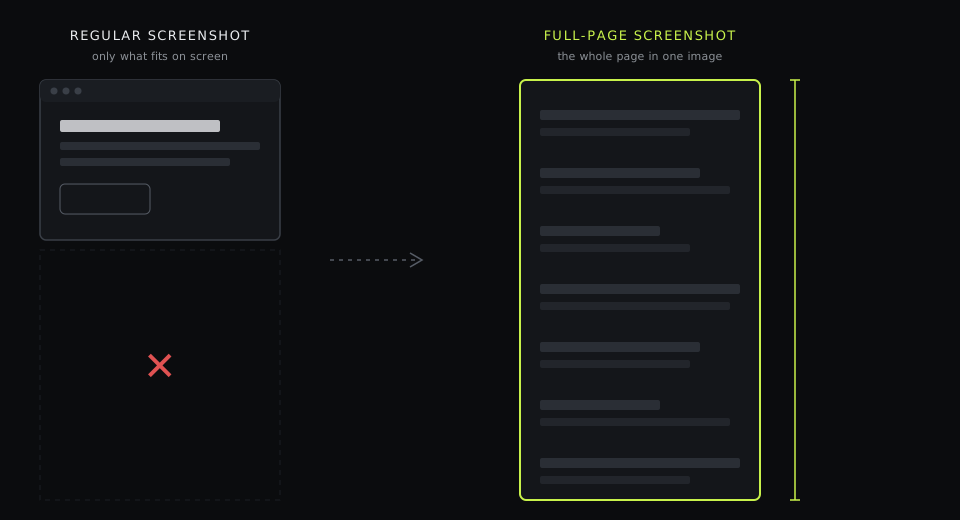
Regular screenshot vs full-page screenshot
A regular screenshot is exactly what's on your monitor at that moment — the visible part of the page, the browser toolbar, maybe a bit of the taskbar. A full-page screenshot captures the entire document from the top of the page to the footer, including everything you'd normally have to scroll to see, as one tall image.
You need the full-page version when the context matters as much as the details:
- Landing page and PPC audits — sending a client notes on every section, not just the hero.
- Competitor research — archiving a competitor's page exactly as it looked on a given date.
- Design and content review — reading a long page top to bottom in one image instead of ten separate crops.
- Documentation and evidence — keeping a record of terms, prices or an ad landing page before it changes.
Stitching ten regular screenshots together by hand works, but it's slow and the seams never quite line up. Every method below does the scrolling and stitching for you.
Method 1: Chrome's built-in "Capture full size screenshot" (no extension)
Chrome has a full-page screenshot feature hidden inside its developer tools. You don't need to know anything about development to use it:
- Open the page you want to capture and let it load completely. Scroll to the bottom once so lazy-loaded images appear, then scroll back up.
- Open DevTools: Ctrl+Shift+I on Windows, Cmd+Option+I on Mac (or F12).
- Open the command menu: Ctrl+Shift+P on Windows, Cmd+Shift+P on Mac.
- Type screenshot and choose Capture full size screenshot.
- Chrome saves a PNG of the whole page to your Downloads folder.
The same menu has Capture node screenshot (select an element in the Elements panel first to capture just that block) and Capture area screenshot. To get a mobile version of the page, click the device icon in DevTools (Ctrl+Shift+M / Cmd+Shift+M), pick a phone size, and then run "Capture full size screenshot" — you get the full mobile layout in one image, which is handy for checking how a landing page looks on a phone.
Where it falls short: it's five steps every time, there's no editor (you'll open the PNG in something else to add arrows or blur data), and you still have to upload the file somewhere to share it. It also captures only the main page scroll — web apps where the content scrolls inside a panel (Gmail, Notion, dashboards, many admin panels) come out as a single screen with the rest cut off.
Method 2: A Chrome extension (one click)
An extension does the same scroll-and-stitch from a toolbar button and usually opens the result in an editor. With the DashShot extension, it looks like this:
- Click the DashShot icon in the Chrome toolbar.
- Choose Full page. The extension scrolls through the page and stitches every section into one image.
- The image opens in the editor in a new tab — add arrows, numbered callouts, text, or pixelate personal data.
- Copy the link and send it. The recipient opens it in any browser without signing up.
Two details make a difference on real-world pages. First, if a page scrolls inside a container rather than the whole window, the extension detects the scrollable panel and captures that instead of returning a single screen — the case where the DevTools method fails. Second, it works on any page you can open in Chrome, including pages behind a login, because the capture happens in your own browser session. There's also a delayed capture option for pages where something needs to be open — a menu, a hover state — when the capture starts.
Full-page capture and the extension are free. Other popular extensions — GoFullPage being the best known — do the scroll-and-stitch well too; the difference is mostly in what happens after the capture: editor, link, history.
Method 3: Microsoft Edge's Web capture
If you have Edge installed (it ships with Windows), press Ctrl+Shift+S on any page, choose Capture full page, and Edge opens the result in a simple markup view where you can draw on it and copy or save it. It's quick and reliable on ordinary pages, and the same limitations apply to web apps with inner scrolling.
Method 4: Firefox's built-in screenshot tool
Firefox has had full-page capture built in for years. Right-click anywhere on the page, choose Take Screenshot (or press Ctrl+Shift+S / Cmd+Shift+S), then click Save full page. You can copy the image or download it. If you only need a full-page screenshot occasionally, opening the page in Firefox is often faster than any Chrome workaround.
| Method | Steps | Editor | Share link | Inner-scroll pages |
|---|---|---|---|---|
| Chrome DevTools | 5 | No | No, file only | No |
| DashShot extension | 2 | Yes | Yes, instant | Yes |
| Edge Web capture | 2 | Basic markup | No | No |
| Firefox screenshot | 2 | No | No | No |
What about Windows and Mac built-in tools?
Neither the Windows Snipping Tool (Win+Shift+S) nor macOS's Cmd+Shift+4 / Cmd+Shift+5 can capture a scrolling web page — they only see what's currently on the screen. If someone tells you to "just take a screenshot of the whole page", one of the browser methods above is what they actually mean. A Mac-specific shortcut: Safari can export a full page as a PDF via File → Export as PDF, which is useful for archiving text-heavy pages but isn't an image you can annotate easily.
When full-page screenshots go wrong — and how to fix them
Sticky headers repeat down the page. Headers and chat widgets with fixed positioning stay on screen as the page scrolls, so some tools stitch them into every section. Fix: scroll to the very top before capturing, close chat widgets and cookie banners, and if the header still repeats, use the DevTools method, which renders the page as a single tall viewport and usually avoids the problem.
Images are blank or grey. Many sites load images only when you scroll near them. Fix: scroll slowly to the bottom of the page once before capturing, then go back to the top.
Only one screen gets captured. The page probably scrolls inside a container (typical for web apps and dashboards), not the whole window. Fix: use an extension that detects scrollable containers, or capture the panel in parts.
Infinite scroll pages never end. Feeds that keep loading content as you scroll have no real bottom. Fix: scroll to the point you need, then use a region screenshot, or capture in sections.
The image is huge or gets cut off. Very long pages can produce images tens of thousands of pixels tall, which some apps refuse to open and browsers may cap. Fix: capture the part you need with a region screenshot, or split a very long page into two or three captures.
Animations and pop-ups land in the middle of the image. Fix: wait for animations to finish, dismiss pop-ups, and capture again.
Tips for full-page screenshots you send to someone
- Annotate the parts that matter. A 9,000-pixel image with no markings forces the reader to hunt. Two or three numbered callouts tell them where to look and in what order.
- Blur personal data. Pages behind a login often show names, emails or order details. Pixelate them before you share.
- Send a link, not a 15 MB attachment. Full-page PNGs are heavy; a link opens instantly and works on a phone.
- Note the date. For competitor or ad audits, the date of the capture matters as much as the content — pages change weekly.